
Share
The Hidden Reason Your Sony Camcorder Won't Connect to Your TV
You pull out your old Sony Handycam, find some RCA cables, and go to plug it into your TV, only to discover there's no yellow/red/white socket anywhere on the camcorder. Don't panic. You're not missing something obvious. Sony deliberately used a proprietary multi-pin AV connector on nearly all their consumer camcorders from the mid-1980s through the 2000s. You simply need the right adapter cable.
What Is Sony's Multi-Pin AV Port?
Instead of standard RCA jacks, Sony built a single compact multi-pin connector, sometimes called an "AV Multi" port, into their camcorders. This port carries composite video, stereo audio, and sometimes S-Video signals all through one socket. Sony did this to keep the camcorder body slim and compact, which was a smart engineering move. But it means the camcorder looks like it has no video output at all if you don't know what to look for.
The connector is a small rectangular port with multiple tiny pins, usually hidden under a rubber flap on the side or bottom of the camcorder. Depending on the model and era, it may be a 10-pin, 20-pin, or mini variant.
Which Sony Camcorders Use the Multi-Pin Connector?
Almost every Sony consumer camcorder from the Video8 era onward used this system. That includes:
- Video8 (8mm) camcorders — Sony CCD-F series, CCD-V series (1985-mid 1990s)
- Hi8 camcorders — Sony CCD-TRV series, CCD-TR series (1989-late 1990s)
- Digital8 camcorders — Sony DCR-TRV series (1999-2005)
- MiniDV Handycam — Sony DCR-HC series, DCR-PC series (1995-mid 2000s)
- MicroMV camcorders — Sony DCR-IP series (2001-2003)
If it says "Handycam" on the body and was made before roughly 2006, there's a very good chance it uses this proprietary connector.
What Adapter Cable Do You Need?
You need a Sony AV adapter cable — commonly sold under Sony part numbers like VMC-15FS or VMC-20FR. These cables have the proprietary multi-pin connector on one end and break out into standard RCA plugs on the other: yellow for composite video, red for right audio, white for left audio.
Some Hi8 and MiniDV models also carry an S-Video signal through the multi-pin port. If your TV has an S-Video input, look for an adapter that includes an S-Video connector, you'll get a noticeably sharper picture compared to composite video alone.
Quick tip: Check your camcorder's model number (printed on the label or inside the battery compartment) and search for "[model number] AV cable" to find the exact part. Sony made several slightly different connector styles across different years, so matching by model number matters.
Step-by-Step: How to Connect Your Sony Camcorder to a TV via RCA
- Get the right adapter cable for your specific camcorder model.
- Locate the AV port on your camcorder, usually under a small rubber flap on the side or bottom of the body.
- Plug the multi-pin end of the adapter cable into the AV port.
- Connect the RCA ends to your TV's composite input: yellow → video, red → right audio, white → left audio.
- Switch your TV input to the correct AV channel (AV1, AV2, etc.).
- Set the camcorder to playback mode — usually a switch labeled VCR, PLAY, or a camera/cassette icon.
- Press play and your footage should appear on screen.
Digitizing Old Tapes? Here's What Else You Need
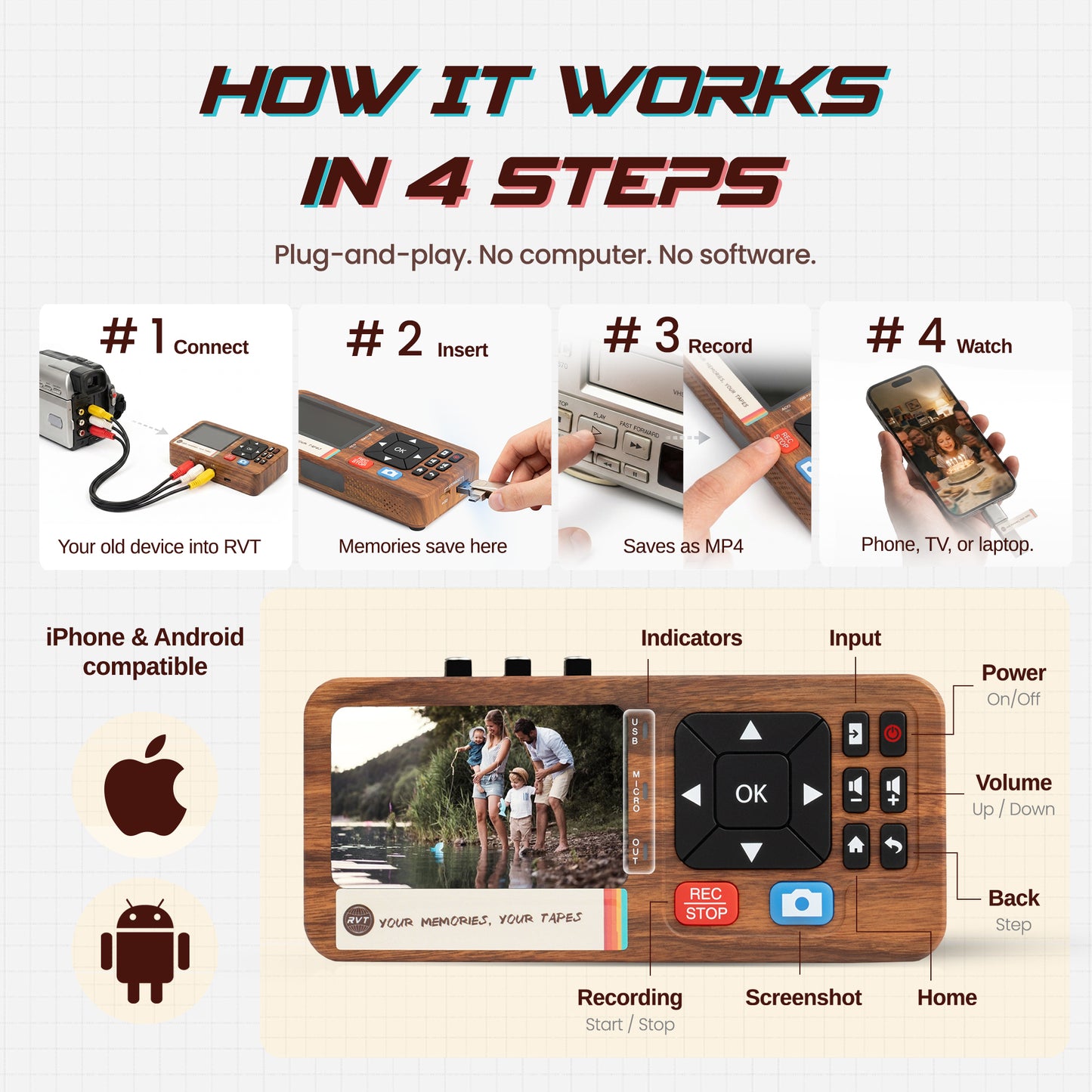
If you're capturing footage to a computer rather than just watching it on TV, the same AV adapter cable applies. Run the RCA outputs into a USB video capture card (such as an Elgato Cam Link or a generic EasyCap), then use software like OBS or VirtualDub to record the incoming signal. For Digital8 and MiniDV camcorders, you can also use the FireWire (iLink) port for a cleaner digital-to-digital transfer, no AV adapter needed for that path, and you get the full original digital quality.
Where to Find Sony AV Adapter Cables Today
Original Sony cables are increasingly hard to find new, but they turn up regularly on eBay, Amazon, and specialty retro electronics shops. Third-party compatible cables also work well, just confirm the pin configuration matches your specific camcorder model. When in doubt, buy from a seller who lists compatible model numbers in their listing.
Got the connection sorted? The free Video8 & Hi8 guide in our Learning Center covers what to do next.
Not sure which cable fits your camcorder? Drop your model number in the comments and we'll point you in the right direction.