
Share
How to Convert VHS-C Tapes to Digital in 2026 (The Complete Camcorder Guide)
You found a box of old tapes. They're smaller than you remember VHS being, about the size of a deck of playing cards, rectangular with a distinctive compact shape. On the label: a birthday party, a school play, a summer vacation. Maybe just a date written in marker.
These are VHS-C tapes, the format that powered millions of handheld camcorders throughout the late 1980s and 1990s. And unlike their full-size VHS cousins, they can't be dropped straight into a standard VCR. They require a small but important extra step before you can watch or digitize them.
Converting VHS-C tapes to digital can be done in under an hour. This guide covers how to identify whether you have VHS-C tapes, choose the right adapter, and capture clean MP4 files you can keep, share, and back up.
What Is VHS-C? (And Who Used It)
VHS-C stands for VHS Compact, a smaller version of the standard VHS cassette that used the same tape formulation and recording format, just housed in a physically smaller shell. Introduced by JVC in 1982, it became enormously popular throughout the late 1980s and 1990s. Nearly every major consumer electronics brand offered VHS-C camcorders: JVC, Panasonic, Sharp, RCA, and Magnavox.
If your family owned a camcorder between roughly 1985 and 2000 and it wasn't a bulky shoulder-mounted unit, there's a reasonable chance it shot on VHS-C. The format was eventually displaced by Hi8 and MiniDV, but the sheer number of camcorders sold means there are tens of millions of VHS-C tapes still sitting in attics and storage boxes.
How to Identify Your Tapes
Size is the first giveaway. A standard VHS cassette measures approximately 7.4 × 4.1 × 1 inches. A VHS-C cassette is roughly one-third that size, about 3.5 × 2.4 × 0.7 inches. If the tape is noticeably smaller than the VHS cassettes you remember, it's almost certainly VHS-C or possibly 8mm, which has a different shape.
Look for labeling. Most VHS-C cassettes are printed with "VHS-C" or "VHS Compact" directly on the cassette shell. What it's NOT: If your cassette is a similar size to VHS-C but oval or slightly different in shape, it may be 8mm video. See our dedicated guide to converting 8mm tapes for that format.
What You Need to Convert VHS-C to Digital
1. A VHS-C Adapter
Because VHS-C uses the same tape format as standard VHS, the cassette can play in a VCR; it just needs a carrier shell to make it the right size. That's what a VHS-C adapter does: a full-size VHS housing with a cradle inside that accepts the smaller tape.
2. A Working VCR
Any consumer-grade unit that plays VHS tapes reliably will work. Check thrift stores, Facebook Marketplace, eBay, or family members who may still have one in storage.
3. A USB Capture Device
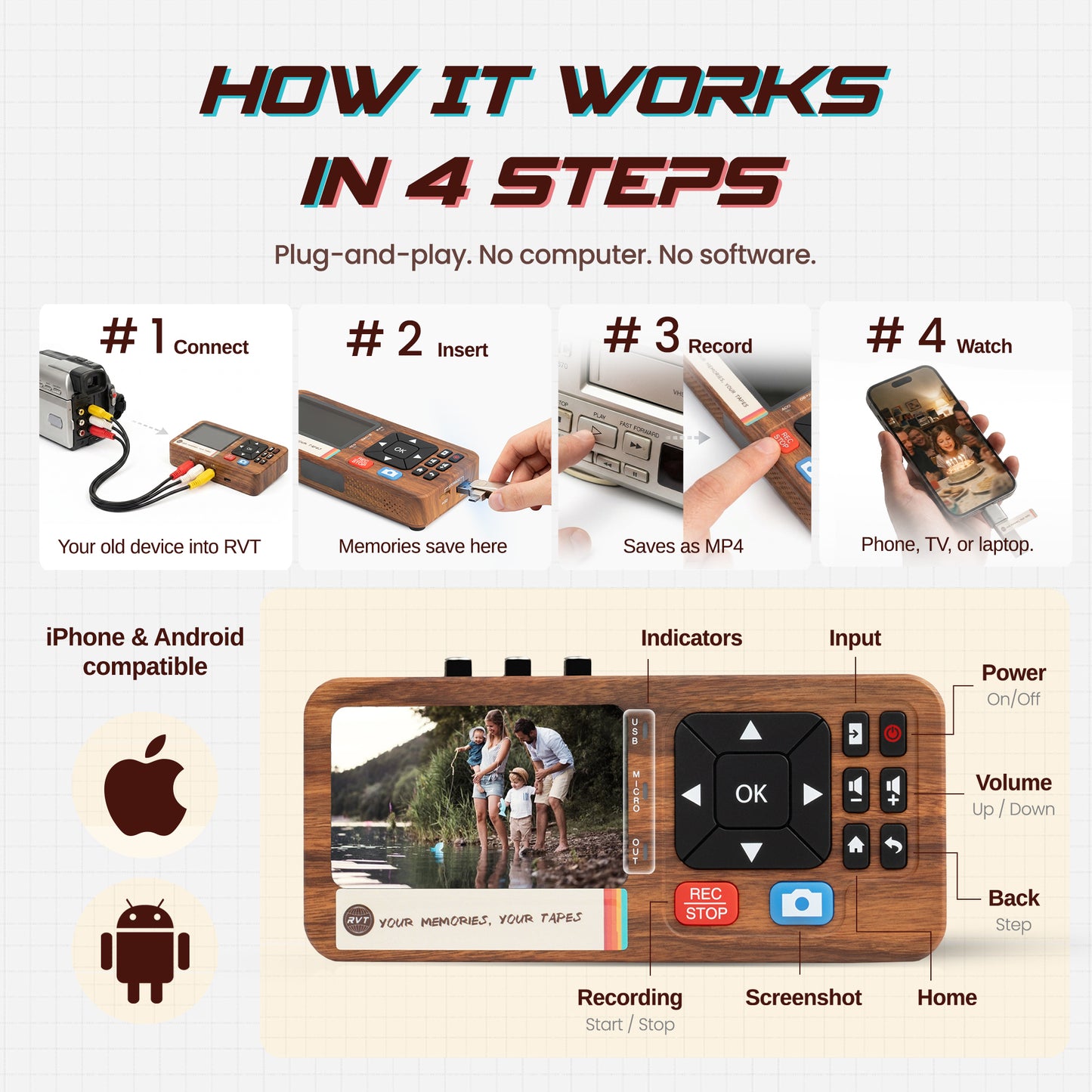
The RVT Digitizer 3.0 is designed specifically for this purpose. It connects your VCR to your PC or Mac via USB, and captures the output as an MP4 file. At $194, it's a one-time investment that covers your entire collection.
The VHS-C Adapter: Everything You Need to Know
Motorized vs. Manual Adapters
Motorized adapters are the recommended choice. They use a small battery-powered motor to maintain correct tape tension throughout playback. Brands like Recoton and Maxell made quality motorized adapters, and new-old-stock units still appear on eBay.
Manual adapters use a simple spring or ratchet mechanism. They work, but are more prone to uneven tape tension, which can cause tracking problems or, in worst cases, tape damage.
Where to Buy
- eBay — Best source. Search "VHS-C adapter motorized." Brands to look for: Recoton, Maxell, Vivitar, JVC.
- Amazon — New adapters available, but quality varies. Read reviews carefully.
- Local thrift stores — Occasionally sold alongside VCRs and camcorders.
Avoid unbranded adapters with few reviews. Test with a tape you don't care about before using your irreplaceable recordings.
How to Convert VHS-C Tapes to Digital
Step 1: Inspect your tape.
Hold the tape up to light and look through the spool window. Check for slack tape, mold, musty smell, or physical damage. Do not attempt to play a tape that shows mold.
Step 2: Load the tape into the adapter.
Open the adapter's cassette door and place your VHS-C tape into the cradle. If using a motorized adapter, the tape should click into place. Close the adapter door firmly.
Step 3: Connect your VCR.
Using RCA cables, connect the VCR's outputs to the RVT Digitizer's inputs. Plug the Digitizer into your computer via USB. Install the included capture software if you haven't already.
Step 4: Insert into the VCR.
With the VCR powered on, insert the adapter with the VHS-C tape inside just as you would a normal VHS tape. If you feel significant friction or hear a grinding noise, stop immediately.
Step 5: Start recording.
Open the capture software. Click record, then press Play on the VCR. VHS-C tapes are typically 30 or 45 minutes per side; stay nearby so you can stop when the tape ends.
Step 6: Save your file.
Name your file descriptively with the date, event, or names. Back up to at least two locations, such as an external hard drive and cloud storage.
Common VHS-C Problems and Solutions
The Tape Won't Feed Into the Adapter
Check that the adapter's door mechanism is fully open before inserting. Some adapters have a small release tab you need to press to open the cradle.
The Adapter Jams in the VCR
With the VCR off and unplugged, manually open the loading mechanism and carefully extract the adapter. Manually advance the tape reels with a pencil to take up any slack, then try again.
Poor Playback Quality
Try pressing the "Tracking" button on your VCR. If poor quality persists, the VCR's heads may need cleaning; a head-cleaning cassette is worth trying first.
Sticky Shed Syndrome
If you hear a high-pitched squeal or see brown residue after ejection, stop immediately. Some affected tapes can be temporarily restored by gentle heat treatment, but consult a specialist first for valuable footage.
Frequently Asked Questions
Can I play VHS-C in a VCR without an adapter?
No. VHS-C cassettes are physically too small to seat correctly in a standard VCR without an adapter. Inserting a bare VHS-C tape could damage both the cassette and the VCR's internal transport. Adapters are inexpensive and still widely available on eBay and Amazon.
My adapter won't load into the VCR, what do I do?
Check the VHS-C tape's tension inside the adapter, manually turn the reels with a pencil until the tape is taut with no slack. If the adapter is motorized, replace the batteries. Try a different VCR if one is available.
How do I know if my tape is NTSC or PAL?
In North America, virtually all consumer VHS-C tapes are NTSC. PAL was used in most of Europe, Australia, and parts of Asia. The RVT Digitizer handles both formats.
Are VHS-C tapes lower quality than standard VHS?
Not inherently. VHS-C uses the same magnetic tape formulation and records at the same resolution as standard VHS, approximately 240 lines of horizontal resolution at SP standard play speed.
Can the RVT Digitizer capture VHS-C directly, without a VCR?
No. The RVT Digitizer connects to the analog video output of a playback device. You'll always need a playback device, such as a VCR with your VHS-C adapter, to generate the signal the Digitizer captures.
For playback tricks, adapter advice, and sourcing tips, see the free VHS-C guide in our Learning Center.
Ready to Save Your VHS-C Tapes?
The RVT Digitizer 3.0 is built for exactly this kind of project. Connect it to your VCR, capture your VHS-C footage in real time, and walk away with MP4 files that will last as long as you store them. Works with VHS, VHS-C via adapter, 8mm, Hi8, and retro game consoles.