Still have boxes of old VHS tapes gathering dust? Don’t let your precious memories fade away in the attic.

VHS tapes lose quality every year, putting your family moments at risk. Today, more people are choosing to convert vhs to computer for easy sharing and long-term preservation.

When you digitize, you can edit, organize, and relive those special times on any device. Imagine showing your favorite clips at the next family gathering or sending a highlight reel to loved ones.

This guide will walk you through every step to convert vhs to computer in 2025. You’ll find out what equipment you need, how to set up, troubleshoot issues, and get the best results. Ready to save your memories for generations?

Understanding VHS to Digital Conversion: Why It Matters in 2025

Preserving family memories is more urgent than ever. If you want to convert vhs to computer, understanding why it matters is the first step. VHS tapes do not last forever. Each year, your precious footage is at risk of fading away. Let’s explore what makes digital conversion essential in 2025.

Understanding VHS to Digital Conversion: Why It Matters in 2025

The Lifespan and Risks of VHS Tapes

VHS tapes were never built to last forever. Over time, magnetic decay eats away at the recorded signal, causing colors to fade and sound to muffle. Environmental factors like heat, humidity, and even mold can speed up this process. According to experts, VHS tapes degrade 10-20% over 10-25 years, making every decade critical for action.

Imagine discovering a wedding tape only to find static and lost voices. Many families have faced this heartbreak. If you want to convert vhs to computer, acting now can prevent these irreplaceable memories from disappearing.

Benefits of Digitizing Your VHS Collection

When you convert vhs to computer, you give your memories a second life. Digital files do not degrade like tapes, so your videos stay crisp for generations. Sharing is a breeze. You can send clips to family, upload to the cloud, or post a snippet on social media from your phone.

Modern devices—smart TVs, tablets, and laptops—play digital files with no hassle. Organizing and editing become simple, letting you trim, enhance, or even add music to old footage. Converting vhs to computer means you are not just saving videos, you are unlocking new ways to enjoy them.

The 2025 Digital Landscape: New Opportunities

In 2025, the world of digital preservation looks brighter than ever. Cloud storage has become affordable and secure, making it easy to store and access your digitized videos anywhere. AI-powered tools can now upscale old footage, restore colors, and remove noise for stunning results.

Demand is growing—over 60% of households have started to convert vhs to computer or digitize other analog media. Families, schools, and even police departments are joining this movement. New technology ensures that your memories can look better than ever, all with just a few clicks.

Common Concerns and Misconceptions

Many people worry that to convert vhs to computer is too hard or expensive. The truth is, today's solutions are simpler and more affordable than ever. Another common myth is about copyright: you might wonder if it is legal to digitize your old tapes. For personal home movies and family recordings, conversion is completely legal. Sharing commercial content online is a different story, but preserving your own memories is your right.

If you have hesitated because of fear or confusion, know that modern guides and user-friendly tools make the process much easier.

Overview of Conversion Methods

There are two main ways to convert vhs to computer: do-it-yourself or using professional services. DIY methods have grown more accessible with plug-and-play devices and intuitive software. Professional services offer convenience but can be costly and require shipping your tapes, which carries its own risks.

Recent advancements in video capture hardware and editing software mean you can achieve great results at home. In this guide, you will learn each step, from setup to editing, so you can convert vhs to computer with confidence and ease.

Essential Equipment and Software for VHS to Computer Conversion

Ready to convert vhs to computer and unlock your old memories? The right equipment makes all the difference. You do not need a studio or a tech degree—just a few reliable tools, a bit of patience, and this guide. Let us break down what you need for a smooth, frustration-free experience.

VHS Players: What You Need to Know

Your journey to convert vhs to computer starts with a working VCR. Not all VCRs are created equal. Some play only standard VHS tapes, while others support S-VHS or VHS-C with adapters.

Look for models with S-Video output for sharper picture quality. Reliable brands like Panasonic, JVC, and Sony still pop up on online marketplaces in 2025. Always check for playback issues, and if possible, buy from sellers offering returns. A clean, well-maintained VCR is the foundation for a successful transfer.

Video Capture Devices: Types and Features

To convert vhs to computer, you need a device that bridges analog and digital worlds. USB video capture cards are popular for their plug-and-play simplicity. Internal PCIe cards offer more advanced features, but require opening your desktop.

Key features to look for:

  • Resolution support (at least 720x480 for VHS)

  • Mac and Windows compatibility

  • Audio input options

Top picks for 2025 include Elgato Video Capture and Diamond VC500. They deliver stable performance and work with most editing software. Consider reading reviews to find a device that matches your needs.

Cables and Adapters

Cables connect everything when you convert vhs to computer. Most VCRs use RCA (composite) or S-Video outputs. Some European models rely on SCART. Identify your VCR’s ports before buying cables.

Modern laptops may lack legacy inputs. In that case, RCA-to-USB or S-Video-to-USB adapters are essential. These adapters allow you to plug directly into your computer’s USB port for easy setup.

Tip: Use high-quality cables to avoid static or signal loss. Label your cables for quick reassembly if you need to disconnect your setup.

Computer Requirements and Storage Considerations

Not every computer can smoothly convert vhs to computer. Check these minimum specs:

  • Dual-core CPU or better

  • 4GB RAM (8GB preferred)

  • At least one free USB 2.0 or higher port

One hour of VHS footage takes up about 1–2 GB in standard definition. If you plan to digitize an entire collection, consider an external SSD for speed and reliability. SSDs transfer files faster than HDDs, making editing and backup less stressful. Always have extra storage ready before you begin.

Recommended Software for Capturing and Editing

The software you choose to convert vhs to computer will shape your workflow. Free options like OBS Studio and VirtualDub offer flexibility, while paid solutions such as Roxio Easy VHS to DVD simplify the process for beginners.

Here’s a quick comparison:

Software

Cost

Live Preview

Noise Reduction

Format Options

OBS Studio

Free

Yes

Limited

MP4, MKV

VirtualDub

Free

Yes

Yes

AVI

Roxio Easy VHS

Paid

Yes

Yes

MP4, DVD

Choose software that supports your capture device and fits your editing goals. Many programs let you trim, enhance, and export files in multiple formats.

Optional Accessories for Better Results

Take your convert vhs to computer project to the next level with a few extras. A time base corrector (TBC) stabilizes jittery footage, especially from older tapes. Video enhancers boost color and clarity.

Clean your VCR heads with specialized tapes, and use demagnetizers to extend your equipment’s life. A simple cleaning kit can save hours of frustration and help preserve every detail.

Digitize with Ease Using RVT Digitizer 3.0

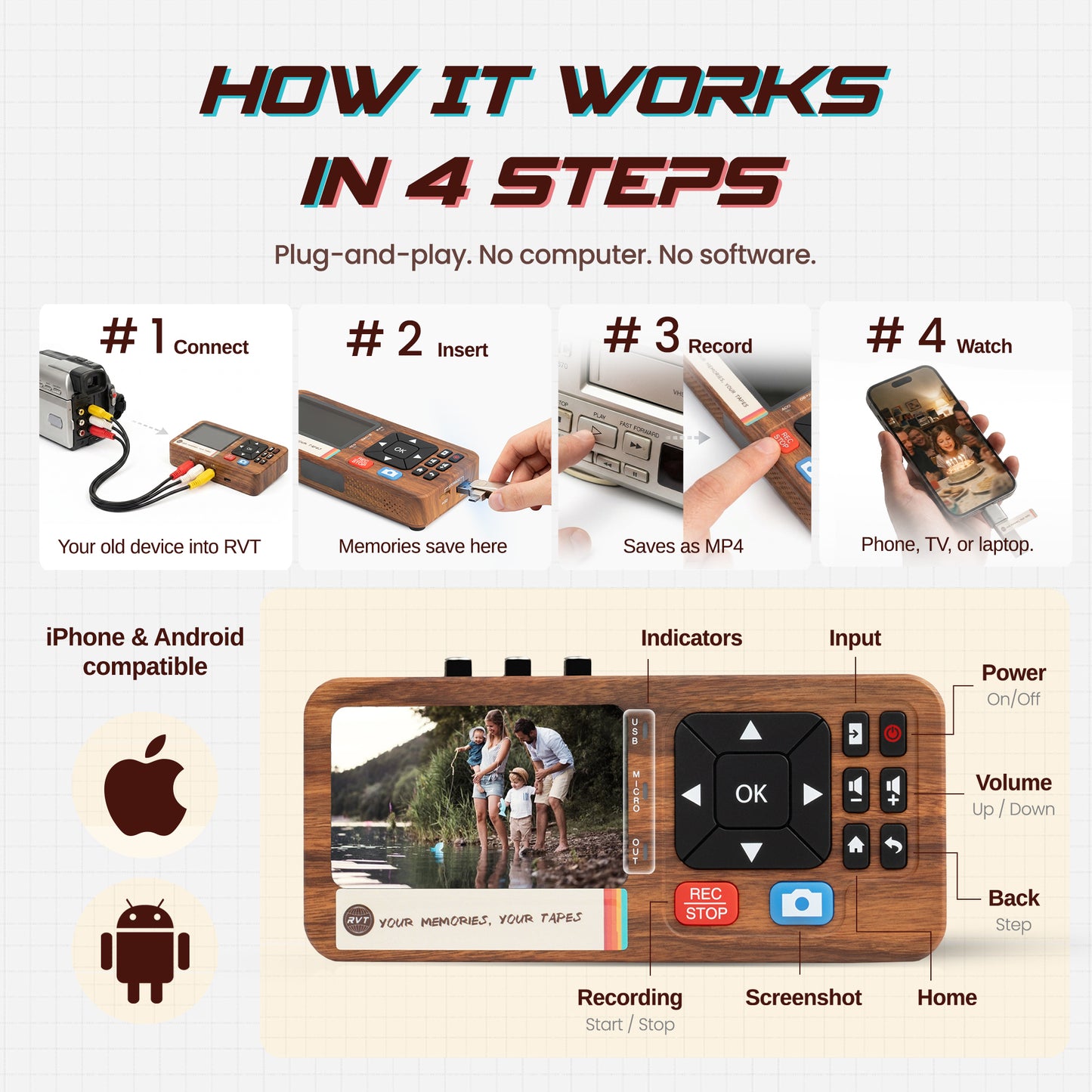
If you want to convert vhs to computer without headaches, consider the RVT Digitizer 3.0 from Retrovision Technologies Inc. This device is designed for families, creators, and anyone who values simplicity and quality. It offers plug-and-play setup, works with most VCRs, and supports both Windows and Mac.

How to Convert VHS to Computer: Step-by-Step Guide 2025 - Digitize with Ease Using RVT Digitizer 3.0

You can learn more about its features, flexible payment options, and support by visiting the RVT Digitizer 3.0 product details. With an active user community and responsive customer care, this solution makes safeguarding your memories easy and affordable.

Step-by-Step Guide: How to Convert VHS to Computer

Ready to save your old home movies for the future? Follow this simple, up-to-date process to convert vhs to computer and keep those memories alive.

Step-by-Step Guide: How to Convert VHS to Computer

Step 1: Gather and Prepare Your Equipment

Start by collecting everything you need to convert vhs to computer. Check off this list:

  • A working VCR (test playback with a known-good tape)

  • Video capture device (USB or PCIe)

  • RCA, S-Video, or SCART cables (plus any needed adapters)

  • Computer with enough free storage

  • Video capture and editing software

Inspect your VHS tapes for visible damage or mold. If you see white, fuzzy spots, clean the tape carefully or set it aside to avoid harming your VCR. Use a head cleaning tape to remove dust from your VCR for the best results.

A little prep now prevents headaches later. Are your tapes stored somewhere humid? Consider letting them acclimate to room temperature before use.

Step 2: Connect Your VCR to the Computer

Now, physically connect the VCR to your computer so you can convert vhs to computer smoothly. Here’s how:

  1. Plug the RCA (yellow for video, red and white for audio) or S-Video cables into the VCR’s output.

  2. Connect the other end to your capture device.

  3. Plug the capture device into your computer’s USB port.

If your computer lacks older ports, use an RCA-to-USB adapter. Double-check that all connections are snug. Loose cables can cause static or no signal.

Visualize your setup as a chain: VCR → Cables → Capture Device → Computer. Want extra clarity? Snap a quick photo of your setup for future reference.

Step 3: Install and Configure Video Capture Software

You’re halfway to being able to convert vhs to computer. Download and install your chosen video capture software (like OBS Studio, VirtualDub, or Roxio Easy VHS to DVD).

Open the software and select your capture device as the video source. Set the resolution to at least 720x480 for standard VHS. Adjust audio settings and test the preview window for a live signal and synced sound.

Some programs offer extra features like noise reduction or cropping. For more tips, check out this Consumer Reports: How to convert VHS to digital guide, which compares software and hardware options in detail.

Before moving on, make sure you see your VHS video playing in the software window.

Step 4: Insert and Cue the VHS Tape

Insert your VHS tape into the VCR. To prepare for the convert vhs to computer process, fast-forward and then rewind the tape once to loosen the spools. This helps prevent tape jams.

Use the VCR remote or front-panel buttons to find the starting point for your transfer. Pause at the spot you want to begin digitizing.

If your tape is sticky or struggles to play, gently fast-forward and rewind again. Avoid forcing the tape. A little patience here can save valuable footage.

Step 5: Start the Capture Process

With your tape cued and software ready, it’s time to convert vhs to computer in real time. Press play on the VCR, then hit “record” in your capture software.

Watch the preview window for any flickers or audio dropouts. If you need to pause for a tape break, stop the software recording, fix the tape, and resume from where you left off.

Keep an eye on your computer’s free space. Video files can grow quickly. If you’re digitizing a long tape, consider breaking it into segments to make editing easier later.

Step 6: Save and Organize Your Digital Files

Once the recording is complete, save your new digital file. To ensure you can easily find and use your videos after you convert vhs to computer, pick a clear file format and naming system.

Common file formats:

Format

Compatibility

File Size

Quality

MP4

Universal

Small

Good

AVI

Windows

Large

High

MOV

Mac/iOS

Medium

Good

Tip: Use file names like 1992_BirthdayParty.mp4 or Family_Vacation_1988.mov.

Organize files by year or event in folders. Back up your files to an external drive or cloud service right away.

Step 7: Edit and Enhance Your Footage

Now that you’ve managed to convert vhs to computer, it’s time to polish your videos. Open your files in an editing program.

Basic edits include trimming unwanted sections, adjusting color, and reducing background noise. More advanced tools let you stabilize shaky footage, upscale to higher resolutions, or add subtitles and titles.

Try before-and-after previews to see the difference. Even a quick edit can make old memories look fresh and vibrant.

Step 8: Share and Archive Your Digital Videos

With your memories digitized, share them! After you convert vhs to computer, upload videos to cloud platforms like Google Drive or Dropbox for easy access.

You can also burn files onto DVDs or Blu-ray discs for a physical backup. Share clips with family by sending private links or USB drives.

For long-term preservation, create multiple backups: one on a hard drive, one in the cloud, and one offsite. Check your files yearly to ensure they’re safe.

Isn’t it amazing how a simple process can unlock decades of memories for everyone to enjoy?

Troubleshooting Common Issues During Conversion

Converting old memories can come with a few hiccups. If you’re trying to convert vhs to computer and run into trouble, don’t worry. Most problems have simple fixes. Let’s walk through the most common issues and how to solve them quickly.

Troubleshooting Common Issues During Conversion

Audio and Video Sync Problems

When you convert vhs to computer, you might notice the sound and picture don’t line up. This often happens if your hardware lags or your software settings aren’t right.

  • Check your video capture device drivers are up to date.

  • Adjust buffer settings in your capture software.

  • Close other programs to free up resources.

For example, in OBS Studio, tweaking the “Audio Sync Offset” can fix delays. Test short clips before capturing full tapes to catch sync issues early.

Poor Video Quality or Artifacts

Blurry images, static, or color streaks can spoil your footage when you convert vhs to computer. Causes include dirty VCR heads, old tapes, or low-grade capture devices.

  • Clean your VCR heads and tapes before each session.

  • Use a time base corrector (TBC) to stabilize the signal.

  • Pick high-quality hardware; Comparing VHS to digital converters can help you choose.

Remember, each analog copy loses quality, a process called generation loss in analog media. That’s why digital conversion preserves your memories best.

Software Crashes or Freezes

It’s frustrating to have software crash while you convert vhs to computer. Outdated programs or not enough RAM can cause freezing or crashes.

  • Update your capture software to the newest version.

  • Make sure your computer meets the minimum specs.

  • Shut down extra apps to give your system a boost.

User forums report that 30% of these issues vanish after a simple update. If problems persist, try a different program for capturing.

No Signal Detected

No video or audio showing up? This is a common headache when you convert vhs to computer, but it’s usually a quick fix.

  • Double-check all cable connections.

  • Make sure the VCR is powered on and set to the correct input.

  • Try swapping out cables or using a different USB port.

Here’s a troubleshooting checklist:

Step

Action

Check connections

Secure all cables

Verify input

Correct input selected

Test on another device

Rule out hardware issue

If you suspect your capture device, compare it with other models for compatibility.

File Size and Storage Issues

After you convert vhs to computer, you might be shocked by how big the files are. Uncompressed video eats up space fast.

  • Use capture software that supports MP4 or H.264 formats for smaller files.

  • Compress large files after capture using free tools.

  • Save to an external drive or cloud storage.

For example, converting a 10GB AVI file to MP4 can reduce it to just 2GB, with almost no loss in quality. Always keep backups of your most important clips.

Tape Playback Errors and Mechanical Issues

Sometimes the VCR chews up tapes, or the playback skips and jitters when you convert vhs to computer. This is often caused by old or sticky tapes or a dirty machine.

  • Manually wind tapes before use to loosen them.

  • Clean the VCR with a head cleaning tape.

  • If the VCR jams or won’t play, seek professional repair.

If you notice tracking lines or constant skipping, try adjusting the tracking control on your VCR. For tapes that just won’t play, it might be time to call in an expert.

Tips for Optimal Results and Long-Term Preservation

Preserving your memories is about more than simply making a copy. To truly protect your analog treasures, you need the right techniques and habits. Let’s break down the smartest ways to get the most from your project to convert vhs to computer, so your family’s history shines for decades.

Best Practices for High-Quality Conversion

Start with clean equipment for the sharpest results. Dust and debris can degrade your video, so always clean VCR heads and inspect tapes before you convert vhs to computer. Use S-Video connections when possible, since they deliver better image clarity than composite cables.

Capture at the highest resolution your system supports. Monitor audio levels to avoid distortion. For step-by-step advice on maintaining quality, check out this Guide to preserving VHS tapes. Taking these steps now will pay off every time you revisit your digital archive.

Advanced Editing and Restoration Techniques

Once you convert vhs to computer, you can breathe new life into old footage. Try AI-powered upscaling and denoising tools available in 2025 to sharpen images and reduce background hiss. Color correction can restore faded hues in 1990s home videos, while stabilization features smooth out shaky shots.

Experiment with basic edits like trimming out static or adjusting brightness. Want to see the difference? Many editing programs allow you to preview before-and-after clips. A little restoration goes a long way in making your memories pop.

Organizing and Cataloging Digital Archives

After you convert vhs to computer, keep your digital memories organized. Use folders sorted by event, date, or family member for easy browsing. Add metadata tags to each video file so you can search by keyword or occasion.

Consider using dedicated media management software to build a searchable archive. This makes it simple to locate a specific birthday party or holiday gathering years from now. An organized archive means you’ll always find what you’re looking for.

Redundancy and Backup Strategies

Don’t let a single hard drive failure erase your hard work. When you convert vhs to computer, follow the 3-2-1 rule: keep three copies, on two types of media, with one stored offsite. Combine cloud storage with physical backups like external drives or DVDs.

Cloud backups are convenient and protect against local disasters. Physical copies offer peace of mind if internet access fails. According to industry reports, 85 percent of data loss is preventable with redundancy. Taking these steps keeps your memories safe for the long haul.

Sharing Digitized Memories with Family

One of the joys when you convert vhs to computer is sharing those moments with loved ones. Create private online galleries for family members to access anytime. Burn DVDs or load USB drives as thoughtful gifts for reunions and holidays.

You can even create highlight reels or montages for special occasions. Sharing is easier than ever, and a well-curated archive brings families closer together. Which milestone will you share first?

Legal and Ethical Considerations

When you convert vhs to computer, remember the rules. It’s legal to digitize tapes you own for personal use. However, avoid sharing commercial content online, as this could violate copyright laws.

If your footage includes sensitive moments, respect others’ privacy before distributing. Sharing family memories should always feel safe and responsible for everyone involved.

Ready to bring those old VHS memories back to life? We’ve just walked through every step you need to save your family’s stories and favorite moments—no more worrying about tapes wearing out or getting lost. With the right tools, you can easily convert your collection and keep it safe for future generations. Imagine sharing that first birthday or epic 90s game night with everyone, anytime. Why let those memories fade when you can preserve them today? If you’re excited to get started and want a simple, trusted way to do it, just Digitize my tapes today.

Back to blog